

How to begin
In order to start using the Altera OpenApi endpoints you need to first configure an openApi key within your company settings in the application. To do so head to Settings, then select Integration section. You will be provided with an option to generate a new key. Once you have the key, you can start using the endpoints.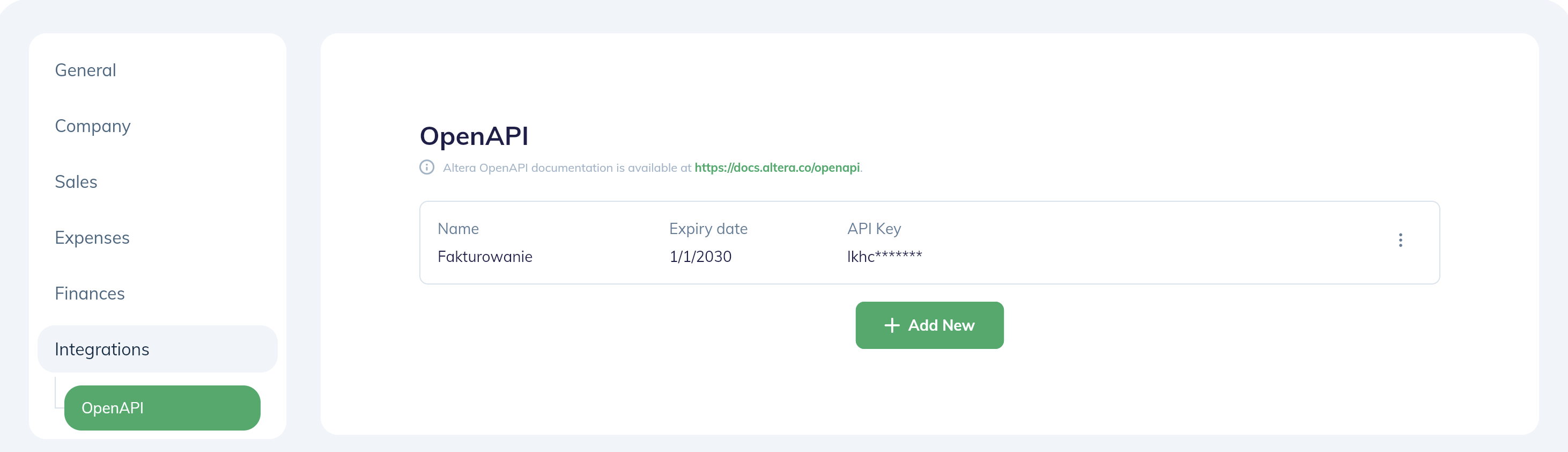
Each key generated in the application is unique and should be kept secure. If you suspect that the key has been compromised, you can always reject the previous one and generate one that is brand new.
Authentication
All endpoints require authentication with the API key generated in the previous step. The API key must be included in the headers of each request in the form:Each key authorizes the user to perform actions within the company it was generated for. If you wish to perform actions in multiple companies, you need to generate a separate key for each of them.
Key expiration and authorization errors
The application defaults a new key to 30 days. Record the selected date and rotate the key before it expires. To use a key without expiration, select that option and explicitly confirm that API keys should be changed regularly. The form requires this confirmation when creating or editing a key without expiration. A verified expired key returns HTTP401 with errorCode: "KEY_EXPIRED", provided that its company still has OpenAPI access. Unknown or invalid keys and companies without OpenAPI access remain rejected by the gateway with HTTP 403 and {"message":"Forbidden"}. An API key cannot manage API keys itself.
Active company administrators receive email reminders 7 days and 1 day before a key’s expiration date. Keys without expiration do not produce these reminders. QA blocks external email delivery.
Authorization decisions are cached for up to 5 minutes. After a key expires or is revoked, a previously cached authorization decision can continue to allow requests until the cache expires. Rotate the key before the configured date instead of waiting for a failed request.
Base URL and QA access
The production base URL ishttps://api.altera.co.
QA access is available directly from Altera after arranging a test company and API key. Contact Altera support for the QA endpoint and access details. Production and QA company data and keys are separate. QA filters external email recipients; see invoice email testing.
Request limits and retries
There is no published fixed per-company requests-per-second allowance. The gateway applies shared infrastructure limits; HTTP429 means the request was throttled. Use bounded exponential backoff with jitter and avoid large bursts. See the AWS HTTP API throttling documentation for how the gateway applies these limits.
Retry reads within a bounded budget. Invoice creation has no idempotency key: if a timeout leaves the save result unknown, reconcile the existing company invoices before creating another one. Free-text search does not enforce uniqueness. See creation and ambiguous responses.
Try it out
Creating a new invoice
In most cases this will be the basic use-case for an integration - creating a new invoice based on data provided by external CMS system. Such operations can be achieved by calling a single endpoint: POST /sales/invoice withbasicInformation > statusId set to ISSUED
Things to keep in mind
If you wish to use additional features of the Altera system, such as detailed financial dashboards, it is imperative to assignprojectId to your invoice and productCategory to your products in the invoicePosition array.
This way the system will be able to properly aggregate your sales based on above-mentioned factors.
It is possible to manage both product categories assigned to an invoice as well as projects post-creation, using regular Altera interface so if you wish to just start generating invoices fast, there’s nothing blocking you from it.
So I’ve issued an invoice. What can I do next?
Downloading the source file
Using POST /sales/pdfUrl endpoint you can retrieve a pre-signed url that gives you access to the file for 5 minutes. PDF generation is asynchronous, so a newly saved invoice may initially return HTTP409 with PDF_NOT_READY and Retry-After: 2. A successful URL request also changes ISSUED to SENT; see the endpoint documentation before using it to check readiness.
Sending my invoice to recipient
Using POST /sales/invoice/send endpoint you can order an e-mail to be sent to your contractor using either the data saved in the system (Contractor info saved along with the invoice) or using an e-mail address of your choice directly.In order to use this function certain configuration steps need to be followed within the application prior to sending out the email - you can learn more within the endpoint’s definition.